
What it's for
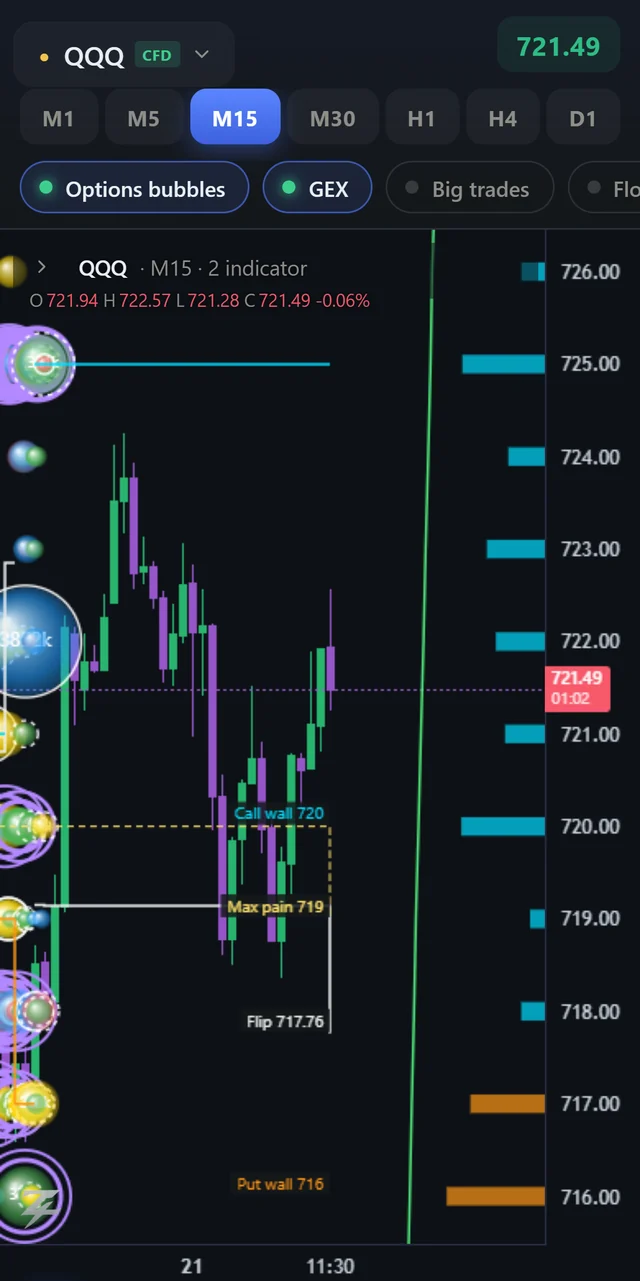
Open the terminal on your phone and get the same data in a layout built for a small screen: the live price at the top, the layers you use most one tap away, and a way to inspect an options bubble without a mouse.
The top bar
- Symbol and live price. The price pill turns green on an up-tick and red on a down-tick.
- Timeframes are a single row of buttons, M1 to D1. The selected one is highlighted.
- Layer chips switch the most-used tools on and off: Options bubbles, GEX, Big trades, Footprint and Flow. Only the tools that exist for the symbol (and your plan) appear. Swipe the row sideways to see them all.
The bottom bar
- Chart and Options switch between the chart and the Options workspace (see Options workspace).
- Widgets (or Panels in the Options workspace) opens the panels one at a time; swipe left and right to move between them, and the dots show where you are.
- Indicators opens the full indicator list and each tool's settings.
- More holds the drawing tools and the account menu.
Tap a bubble to inspect it
On a computer you hover a bubble and Ctrl+click it for the payoff. A phone has neither, so a tap does the job:
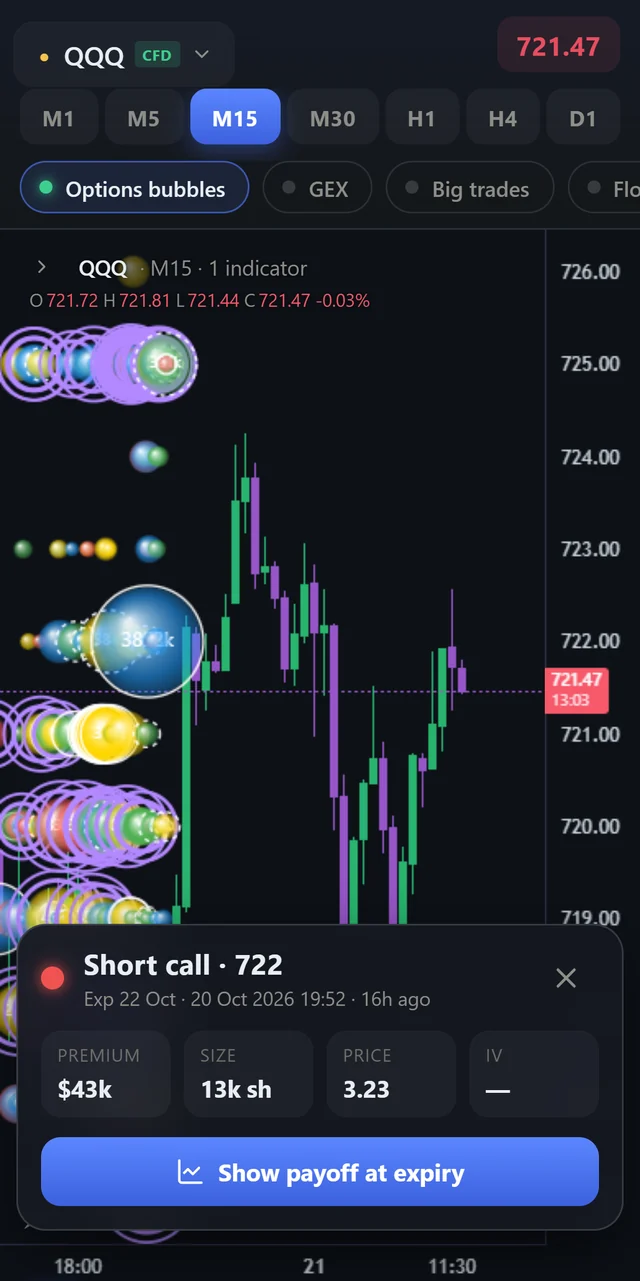
- Tap a bubble. A card slides up with the trade's type and strike (for example Short call · 722), its expiry and how long ago it printed, then four tiles: Premium, Size, Price and IV.
- Read the tags under the tiles: Block, Combo, Sweep, Liquidation, or how many legs the structure has.
- Show payoff at expiry draws the structure's profit and loss on the chart, exactly as Ctrl+click does on a computer. It is available for BTC, ETH and, when the chart itself is that symbol, for GLD, SPY and QQQ.
- Close with the ✕, or tap empty chart space.
Bubbles are drawn a little smaller on a phone so that more of them fit; the filters in the bubble settings (minimum premium, categories, structure) work the same as on a computer.
How to use
- Use the chips, not the menus. Start from Options bubbles and GEX, then add Big trades or Flow when you want confirmation.
- Tap the biggest bubbles near a wall and open the payoff — the same routine as on the desktop, in half a minute.
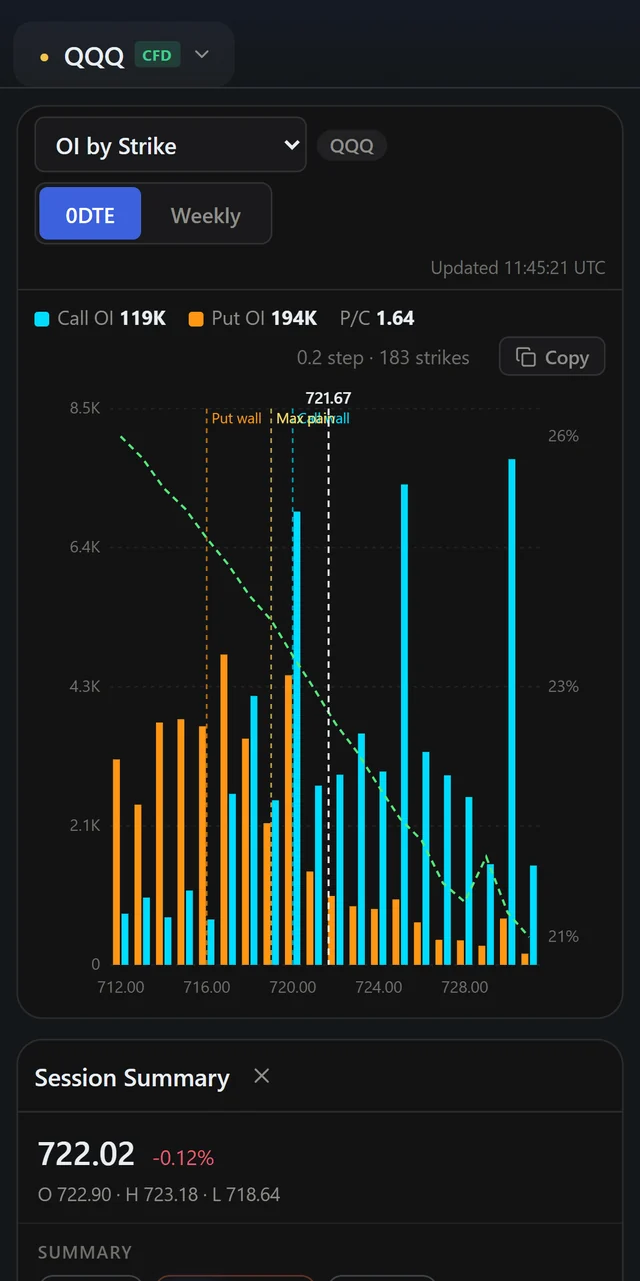
- Check the Options workspace for the OI walls and the tape when you are away from your desk.
Good to know
A phone shows one chart at a time; split charts, the drawing rail and the keyboard shortcuts are for the computer. Dense tools such as the footprint are easier to read on a larger screen, or with the phone turned sideways.